
This is just one of the many checks that our Daily Checkup and Quickscan Report from Stedman Solutions will report on.
Understanding and Resolving High Virtual Log File (VLF) Count in SQL Server
Introduction
In the world of SQL Server performance tuning, one often overlooked yet critical aspect is the management of Virtual Log Files (VLFs) within the transaction log. A high count of these VLFs can lead to a variety of issues affecting the overall health and performance of your database system. In this post, we’ll delve into what VLFs are, the problems associated with a high VLF count, and how you can resolve these issues to maintain an optimized SQL Server environment.
What are Virtual Log Files?
Virtual Log Files (VLFs) are subdivisions within the SQL Server transaction log file. The transaction log plays a pivotal role in database recovery, ensuring data integrity by recording all transactions and modifications made to the database. Whenever a transaction log grows, it doesn’t do so in one large chunk but rather in smaller segments known as VLFs. The number of VLFs you have can significantly impact the performance and recovery time of your database.
Why Is Managing VLFs Important?
Mismanaged VLFs can result in several performance issues:
- Slow Recovery Times: SQL Server must scan the log file during recovery, and an excessive number of VLFs can drastically slow this process.
- Performance Bottlenecks: Large numbers of VLFs can cause delays during transaction log backups and restores.
- Increased Log Growth Events: Inefficient log file management often leads to frequent, small growth increments, creating even more VLFs and further compounding performance problems.
By regularly using the VLF Report in Database Health Monitor, you can proactively address these issues, ensuring your transaction log files are optimized for performance and scalability.
Problems with High VLF Count
- Slower Database Recovery: SQL Server must recover each VLF during startup. If you have thousands of VLFs, it can substantially slow down the recovery process, leading to longer downtimes.
- Performance Degradation: High VLF counts can lead to fragmented transaction logs, which can slow down transaction log backups, restores, and cause overall performance degradation.
- Impact on Replication and Mirroring: Excessive VLFs can also affect log shipping, mirroring, and replication, as these technologies rely on the transaction log for synchronizing databases.
Diagnosing High VLF Count
Before you can address the problem, you need to determine if you have a high VLF count. You can use the Database Health Monitor, a tool designed to provide insights into SQL Server performance, to diagnose the issue. It will help you monitor your transaction logs and alert you to a high VLF count among other vital performance metrics.
Resolving High VLF Count
- Monitoring and Maintaining Log Growth: Implement a monitoring process to watch the growth of the transaction log and its VLFs. Regular monitoring can help you catch a high VLF count before it becomes problematic.
- Proper Sizing of Transaction Logs: One of the most effective ways to control VLF counts is to size your transaction logs appropriately from the beginning. Pre-sizing your logs to the size you expect them to grow to can minimize the number of VLFs.
- Performing Log Backups: Regular log backups are essential in maintaining a healthy VLF count. This operation truncates the log, marking inactive VLFs as reusable, which prevents uncontrolled growth.
- Shrinking and Recreating the Transaction Log: In cases where the VLF count is already too high, you might need to shrink the transaction log and then grow it to an appropriate size. This process effectively resets the number of VLFs.
Key Features of the VLF Report In Database Health Monitor:
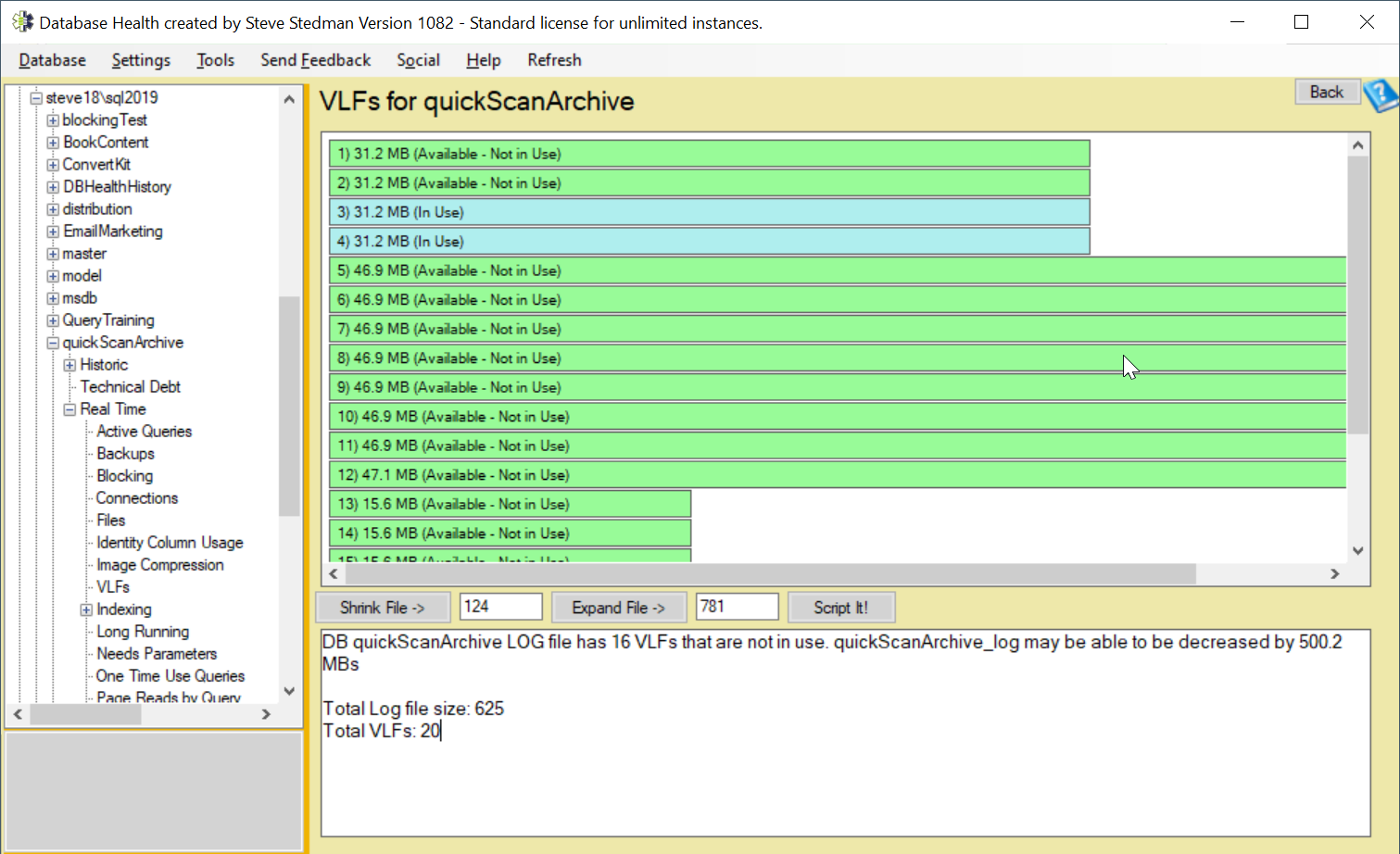
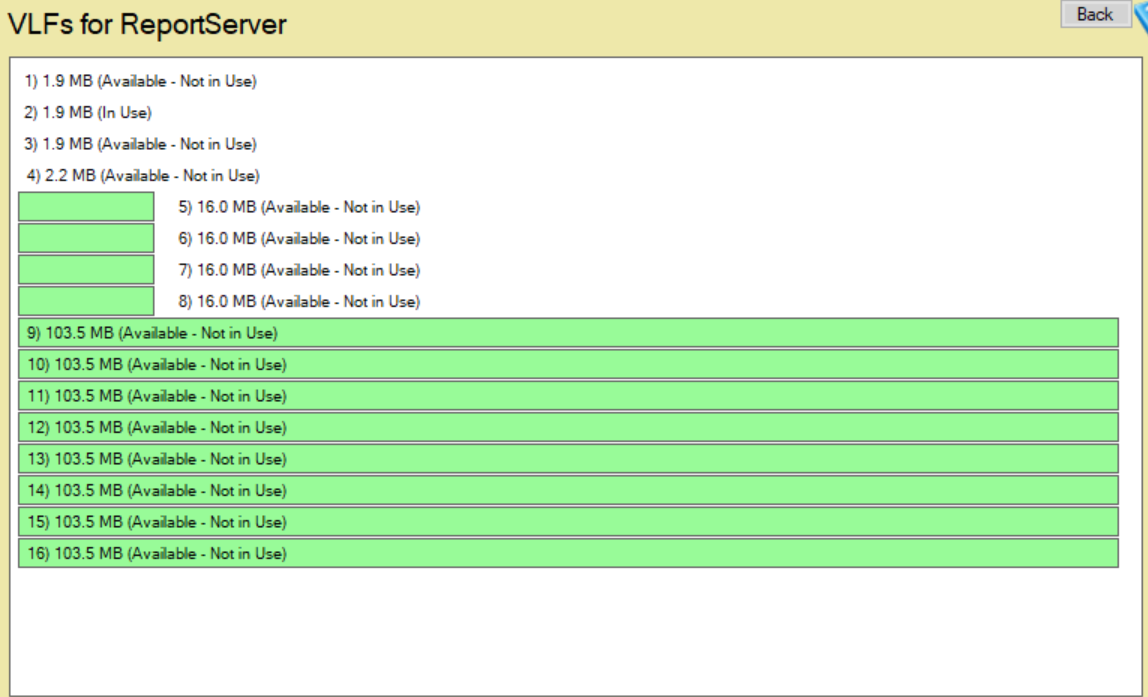
- View Active and Inactive VLFs: The report provides a breakdown of which VLFs are in use (active) and which are not. This insight is critical for understanding log usage and identifying whether a log file is bloated or overgrown with inactive VLFs.
- Analyze VLF Count: SQL Server performance can degrade when a log file contains too many VLFs. The report highlights the total number of VLFs, making it easier to determine whether your log file needs maintenance.
- Shrink or Expand the Log File: Based on the state of your VLFs, you can use Database Health Monitor to:
- Shrink: The transaction log if there are excessive inactive VLFs, reducing the file size and reclaiming disk space.
- Expand: The transaction log to create a more optimal number of VLFs, improving log performance during growth events.
- Visual Representation: The VLF Report includes a graphical representation of the log file, showing the distribution of active and inactive VLFs. This makes it easy to spot problems at a glance.
How to Use the VLF Report in Database Health Monitor
- Open Database Health Monitor: Download and install Database Health Monitor if you haven’t already from DatabaseHealth.com.
- Run the VLF Report:
- Connect to your SQL Server instance.
- Navigate to the VLF Report under the “Reports” menu.
- Select the database for which you want to analyze the transaction log.
- Review the Results: Inspect the number of active and inactive VLFs, and review the graphical representation of your transaction log.
- Perform Maintenance: If needed, shrink the transaction log to remove unused VLFs, or expand it in larger increments to create fewer, more evenly distributed VLFs.
Best Practices for Managing VLFs
- Preallocate Log File Size: Instead of allowing SQL Server to expand the log file in small increments, preallocate a sufficient log file size to minimize growth events.
- Use Larger Growth Increments: Set the log file growth increment to a reasonable value (e.g., 512 MB or more) to avoid creating too many VLFs during growth.
- Monitor Regularly: Use the VLF Report in Database Health Monitor as part of your routine database maintenance to identify and address issues before they impact performance.
Conclusion
A high VLF count is a common yet frequently unnoticed issue that can significantly hinder your SQL Server’s performance. By understanding the problems associated with excessive VLFs and implementing a strategy to manage them, you can ensure faster recovery times, improved performance, and overall healthier database systems.
For more in-depth guidance and expert SQL Server tuning services, consider enrolling in Stedman’s SQL School classes or explore Stedman Solutions’ services. And don’t forget to leverage the Database Health Monitor for comprehensive insights into your SQL Server’s performance, including VLF counts. Visit Stedman Solutions and Database Health Monitor for more information and tools to keep your databases running smoothly.
This is just one of the many checks that our Daily Checkup and Quickscan Report from Stedman Solutions will report on.
Need help with this or anything relating to SQL Server? The team at Stedman Solutions can help. Find out how with a free no risk 30 minute consultation with Steve Stedman.

More from Stedman Solutions:

Steve and the team at Stedman Solutions are here for all your SQL Server needs.
Contact us today for your free 30 minute consultation..
We are ready to help!