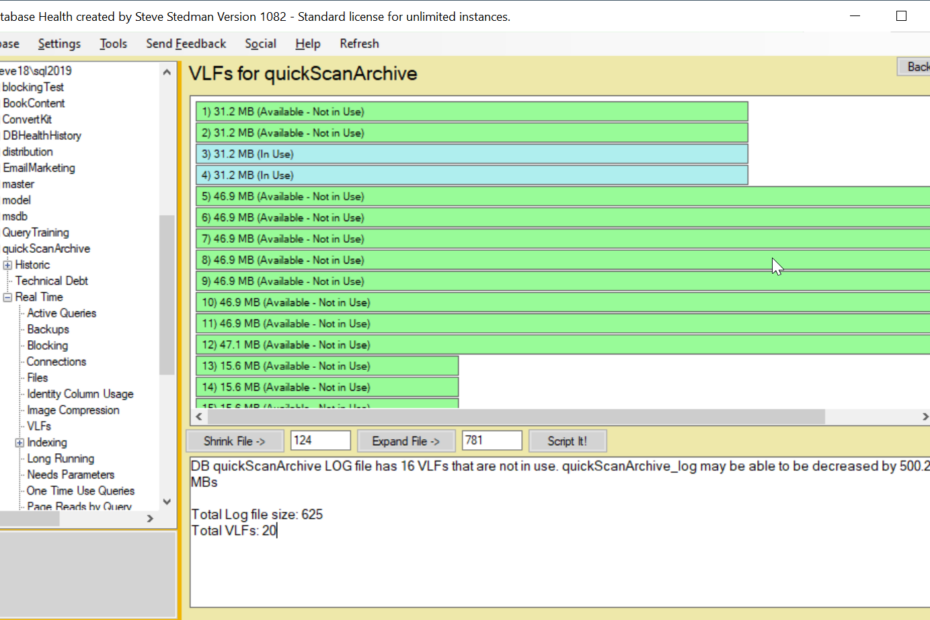
Here is a short video on managing VLFs on SQL Server

https://youtu.be/VjsgTWkws8M?si=ywngDBtdL9uE2i0X
Best Practices for Managing VLFs (Virtual Log Files) in SQL Server
One of the lesser-known but critical factors that can impact SQL Server Performance is VLF fragmentation. It often flies under the radar—until your log BACKUPs slow down, your restores crawl, or transaction log performance takes a nosedive.
Let’s break down what VLFs are, why they matter, and how to manage them like a SQL Server pro.
What Are VLFs?
VLFs (Virtual Log Files) are internal chunks of the SQL Server transaction log file (.ldf). Every time the transaction log grows (either manually or via autogrowth), SQL Server divides that new space into multiple VLFs.
Think of your log file as a highway, and VLFs as the lanes. If there are too many narrow lanes, traffic jams (performance issues) are bound to happen.
Why Too Many VLFs Are a Problem
Having too many VLFs can:
- Slow down log backups
- Slow down database recovery (especially after a crash)
- Cause long restore times
- Hinder performance of large transactions
I’ve worked with clients who had over 100,000 VLFs in a single database. Just taking a log backup would spike CPU and disk I/O.
Best Practices for Managing VLFs
1. Check VLF Count Regularly
Use this script to check the number of VLFs per database:
DBCC LOGINFO;-- Or, for SQL Server 2012+, use this:SELECT COUNT(*) AS vlf_count FROM sys.dm_db_log_info(DB_ID());A healthy VLF count is usually under 300. Once you get beyond 1,000, it’s time to take action.
2. Avoid Tiny Autogrowth Increments
SQL Server’s default log file autogrowth setting is usually 10%—which sounds reasonable but can lead to many small VLFs, especially as the file grows.
Best Practice: Use fixed-size autogrowth like 512MB or 1GB instead of percentage growth.
ALTER DATABASE [YourDBName]MODIFY FILE (NAME = 'YourDBName_log', FILEGROWTH = 512MB);3. Pre-Size the Log File
If you’re setting up a new database or know your log will grow large, size it up front.
For example, instead of starting at 100MB and letting it grow in chunks, set it to 4GB initially with 1GB autogrowth.
ALTER DATABASE [YourDBName]MODIFY FILE (NAME = 'YourDBName_log', SIZE = 4096MB, FILEGROWTH = 1024MB);4. Fix a High VLF Count the Right Way
If you’ve already got excessive VLFs, here’s how to clean them up:
Shrink and grow the file as outlined in the video above using Database Health Monitor.
5. Monitor VLF Growth Over Time
This is where ongoing monitoring pays off. Using a tool like Database Health Monitor, you can track VLF counts over time and receive alerts when they spike.
Better yet—our Managed Services can take this off your plate entirely. We monitor log file growth patterns, VLF fragmentation, and handle corrections automatically—before performance takes a hit.
Summary: VLF Best Practices
| Tip | Why It Matters |
|---|---|
| Check VLF count regularly | Detect fragmentation early |
| Use fixed-size autogrowth | Prevent excessive small VLFs |
| Pre-size your log file | Fewer, more efficient VLFs |
| Clean up excessive VLFs | Restore performance and recovery speed |
| Monitor log file growth | Stay ahead of issues |
Need Help with VLFs or SQL Server Performance?
At Stedman Solutions, our SQL Server Managed Services include:
- VLF monitoring and maintenance
- Transaction log tuning
- Backup optimization
- Proactive alerting with Database Health Monitor
Let’s take the guesswork out of log file management—so your SQL Server runs efficiently and reliably.
Conclusion
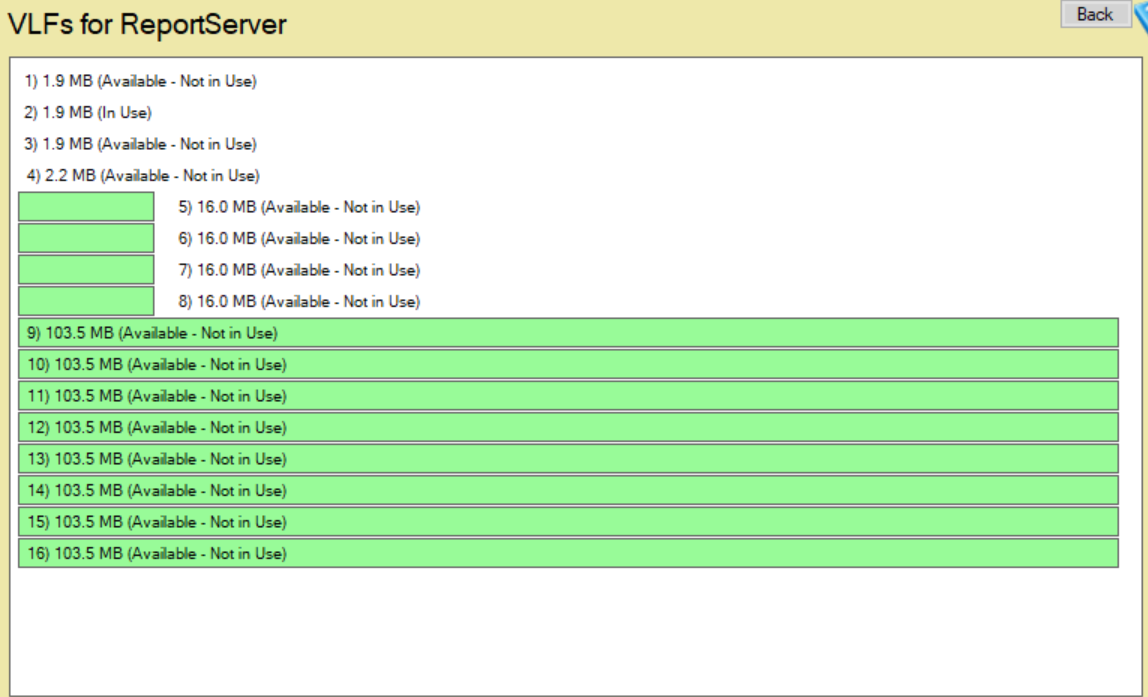
The VLF Report in Database Health Monitor is an indispensable tool for SQL Server administrators looking to optimize their transaction log performance. By providing detailed insights into active and inactive VLFs and offering the ability to shrink or expand the log file, this report simplifies what could otherwise be a complex maintenance task.
For more tips on SQL Server Performance Tuning and expert guidance, contact Stedman Solutions. Our Team specializes in helping you resolve database performance issues quickly and effectively. Let us help you get the most out of your SQL Server!
More from Stedman Solutions:

Steve and the team at Stedman Solutions are here for all your SQL Server needs.
Contact us today for your free 30 minute consultation..
We are ready to help!