Understanding the size of your tables is essential for managing database performance, optimizing storage, and identifying potential issues in SQL Server. In this post, we’ll explore how to find table sizes using T-SQL, and we’ll introduce an easier and faster alternative: the Table Sizes Report in Database Health Monitor.
Finding Table Sizes Using T-SQL
SQL Server doesn’t provide a straightforward system view for table sizes, but you can calculate the space used by tables using the system views sys.dm_db_partition_stats, sys.allocation_units, and sys.partitions. Here’s a breakdown of the T-SQL query and what it does.
T-SQL Query to Get Table Sizes
SELECT t.name AS TableName, SUM(a.total_pages) * 8 AS TotalSpaceKB, SUM(a.used_pages) * 8 AS UsedSpaceKB, (SUM(a.total_pages) - SUM(a.used_pages)) * 8 AS UnusedSpaceKB, SUM(CASE WHEN p.index_id < 2 THEN a.used_pages ELSE 0 END) * 8 AS DataSpaceKB, SUM(CASE WHEN p.index_id >= 2 THEN a.used_pages ELSE 0 END) * 8 AS IndexSpaceKBFROM sys.tables tINNER JOIN sys.partitions p ON t.object_id = p.object_idINNER JOIN sys.allocation_units a ON p.partition_id = a.container_idGROUP BY t.nameORDER BY TotalSpaceKB DESC;
What the Query Does
- sys.tables: Provides a list of tables in the database.
- sys.partitions: Shows partition information, including data and index allocations for each table.
- sys.allocation_units: Contains page allocation details (e.g., total, used, and unused pages).
The query calculates:
- TotalSpaceKB: Total size of the table (data + indexes + unused space).
- UsedSpaceKB: Space actively used by data and indexes.
- UnusedSpaceKB: Allocated but currently unused space.
- DataSpaceKB and IndexSpaceKB: Separate calculations for data and index space usage.
How to Use It
1. Run the query in SQL Server Management Studio (SSMS).
2. Review the results to identify large tables and how their space is being utilized.
Limitations of Using T-SQL for Table Sizes
While the T-SQL method works, it has its challenges:
- Complexity: The query can be daunting for those unfamiliar with SQL Server’s internal system views.
- Manual Effort: You must run the query and interpret results manually.
- No Historical View: The query provides a snapshot but doesn’t help track changes in table sizes over time.
- Limited Insights: It focuses solely on size and doesn’t provide insights into performance or fragmentation.
The Easier Alternative: Database Health Monitor
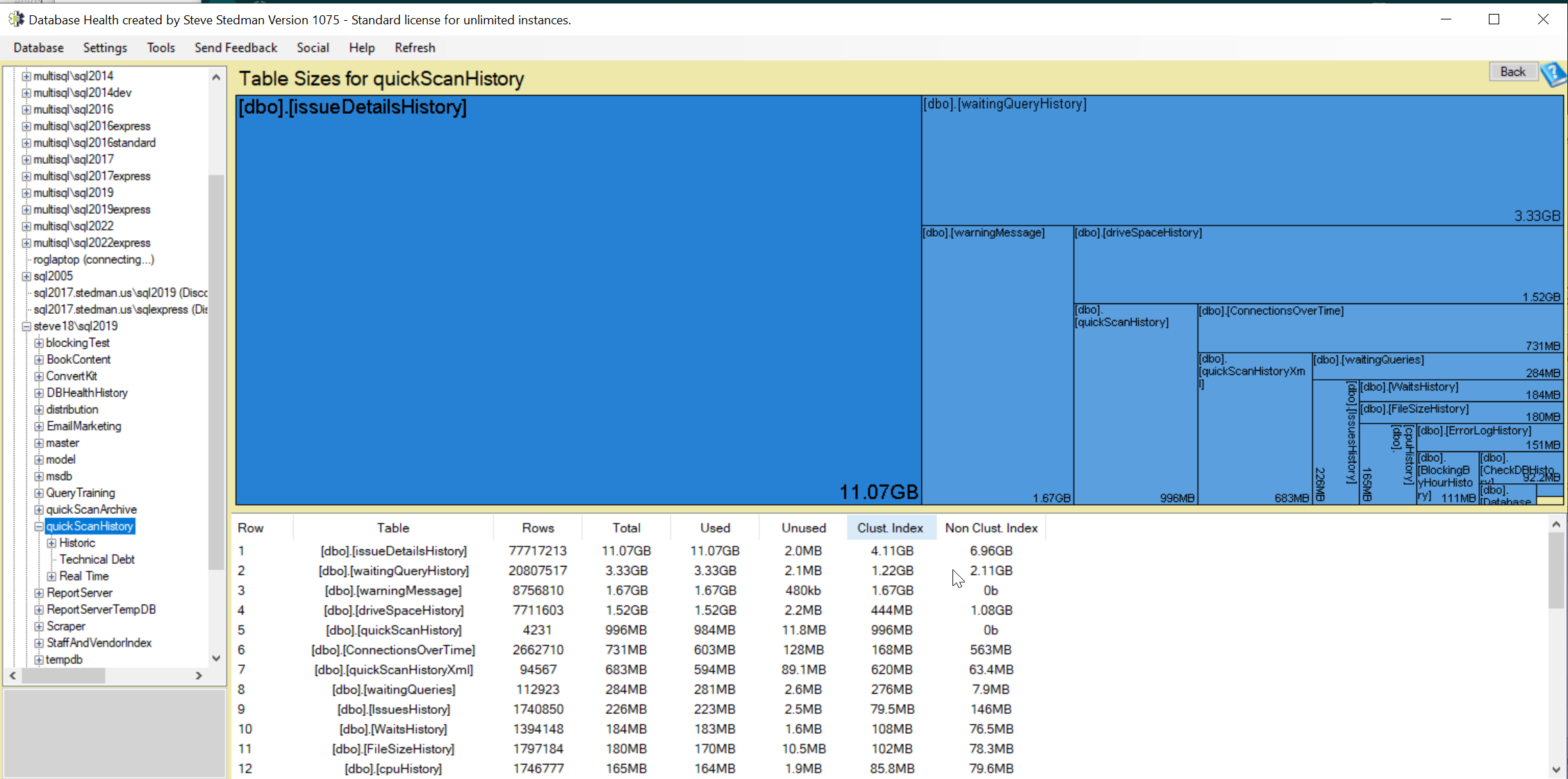
If you’re looking for a simpler way to track table sizes without writing T-SQL queries, the Table Sizes Report in Database Health Monitor is the perfect solution. This tool provides an intuitive interface for managing your SQL Server environment, including a dedicated report for table sizes.
Benefits of the Table Sizes Report
- Visual Insights: Quickly see table sizes, index sizes, and total space usage in an easy-to-read format.
- Historical Data: Monitor how table sizes change over time, helping you anticipate growth trends.
- No T-SQL Required: Save time and avoid the complexity of writing queries.
- Additional Metrics: Identify fragmentation, data distribution, and other performance-related details.
- Exportable Reports: Share findings with your team or stakeholders in just a few clicks.
How to Access the Table Sizes Report
- Download and install Database Health Monitor if you haven’t already.
- Connect to your SQL Server instance.
- Navigate to the Table Sizes Report under the “Reports” section.
- View detailed information on table sizes, along with additional metrics like index fragmentation and partition usage.
Get Started with Database Health Monitor
While T-SQL is a powerful tool for database administrators, tools like Database Health Monitor make life easier by automating complex tasks and providing deeper insights. The Table Sizes Report is just one of many features designed to help you optimize and maintain your SQL Server environment.
Need Help Managing Your SQL Server?
If you’re struggling with storage, Performance Tuning, or any SQL Server-related challenges, Stedman Solutions can help. Through our Managed Services, we provide proactive monitoring, optimization, and support to ensure your databases run efficiently.
contact us today at Stedman Solutions to discuss your needs, or try out Database Health Monitor to start managing your SQL Server with confidence.
With tools like T-SQL and Database Health Monitor at your disposal, managing table sizes doesn’t have to be a daunting task. Whether you prefer coding or a graphical interface, you now have everything you need to stay on top of your database’s space usage.
To see more topics like this, check out our blog page.
More from Stedman Solutions:

Steve and the team at Stedman Solutions are here for all your SQL Server needs.
Contact us today for your free 30 minute consultation..
We are ready to help!